6.5. Handling imagery layers
Cesium supports adding additional imagery layer to the Earth map by
using the OGC compliant Web Map Service (WMS).
Starting from version 2.0.0, the 3D web client also supports
Web Map Tile Service (WMTS). The 3D web client
provides a simple widget panel which allows the user to easily add and
remove any imagery layers. The widget panel (1) (marked in
the following figure) can be expanded and collapsed by clicking on the
Imagery Layer button on the widget panel.
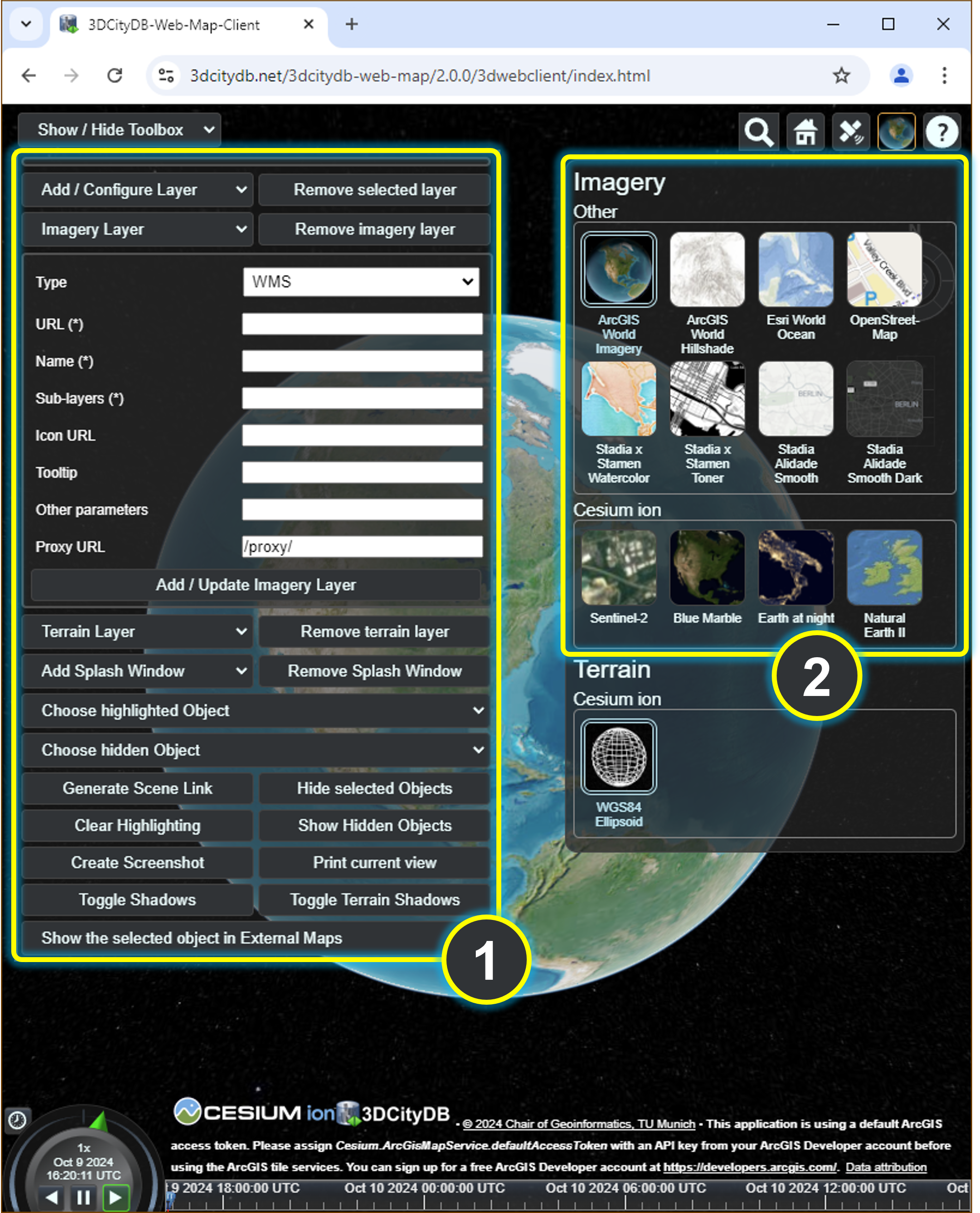
Fig. 6.12 The input panel (1) for adding a new imagery layer and the
BaseLayerPicker widget (2) where the added imagery layers will be listed
together with the per default available imagery layers
The parameters required for defining such imagery layers are described as follows:
|
|
|
The location of the dataset on the web |
|
The name of the imagery layer to be displayed in the |
|
An imagery layer may contain one or more sublayers, whose names must be separated by comma |
|
(Only for WMTS) The style identifier available in the imagery dataset |
|
(Only for WMTS) The |
|
The URL of the icon used for representing this imagery layer in the |
|
A text to be displayed when the mouse pointer is hovering over the layer’s icon |
|
Additional parameters can be specified as |
|
Location of the proxy server used for cross-domain issues, such as |
The Proxy URL parameter
helps the 3D web client to get around the cross-domain issue when
performing HTTP requests. Since most of the WMS/WMTS server do not support
CORS, a proxy running behind the 3D web client is required. If you use
the JavaScript-based HTTP server shipped with the 3D web client
or if you are using the 3D web client hosted on the 3DCityDB server, you
do not need to change the default value, since there already exists a
built-in proxy running with the relative path /proxy/. Otherwise, this
parameter value must be adjusted according to the path of the proxy in
use.
Usage example:
In this example, a WMS imagery layer provided by the Vorarlberg State Government will be added to and displayed in the 3D web client. The following parameter values should be entered into the corresponding input fields:
|
|
|
|
|
|
|
|
|
http://cdn.flaggenplatz.de/media/catalog/product/all/4489b.gif |
|
|
|
|
|
|

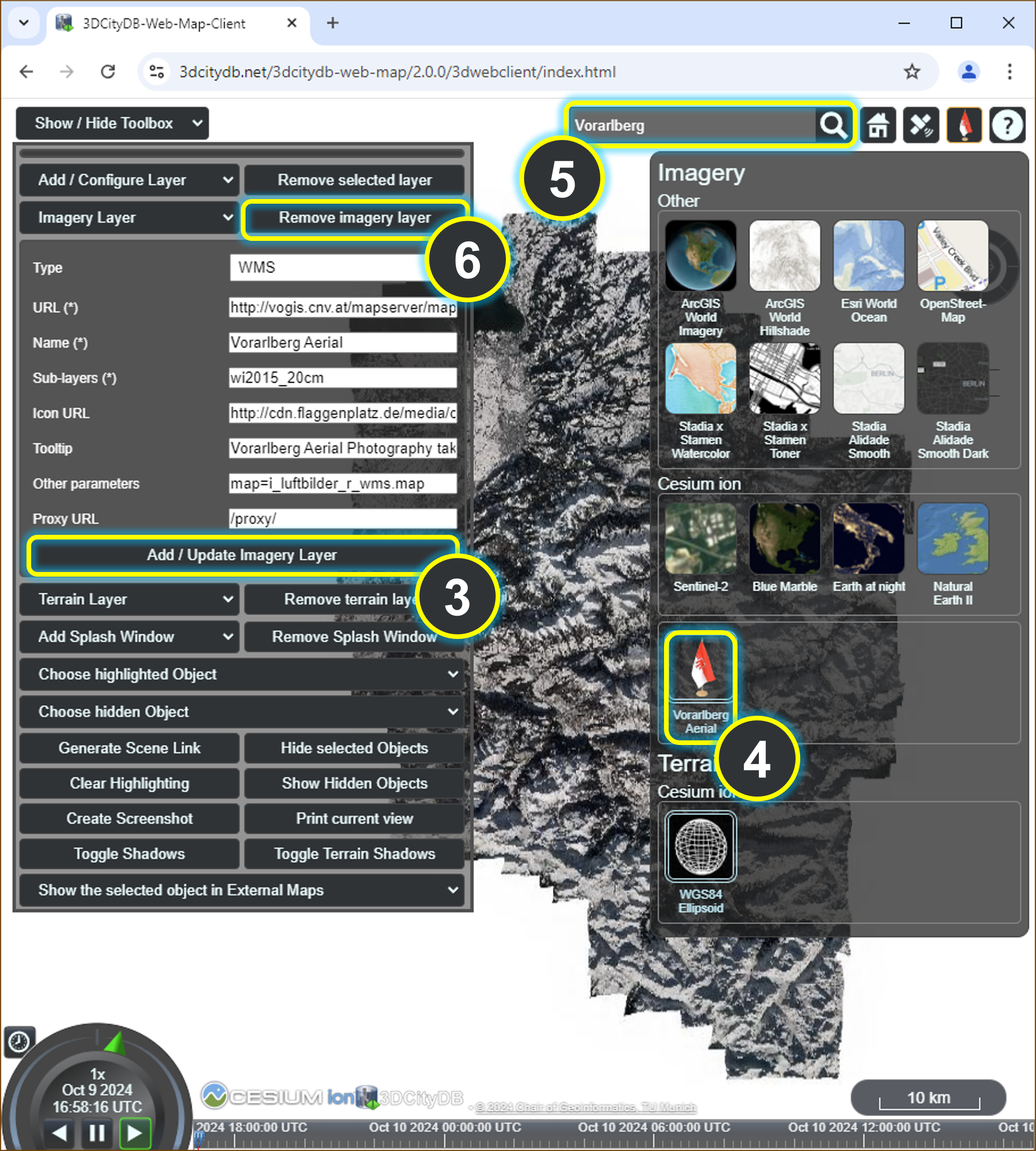
Fig. 6.13 Example showing how to add a new WMS layer to the 3D web client
Note
For your convenience, this example is readily available for access here.

As shown in the figure above, once the parameter settings have been
completed, the WMS layer can be loaded by clicking on the
Add / Update Imagery Layer button (3).
Its icon image together with its label name (4)
will be listed on the BaseLayerPicker widget (2). You can use the
Geocoder widget (5) to zoom the Earth map to the region of Vorarlberg
state and check the added WMS layer. Clicking on the Remove imagery layer
button (6) will remove the WMS layer and replace it with the default imagery layer
that is the first item listed on the BaseLayerPicker widget (2).